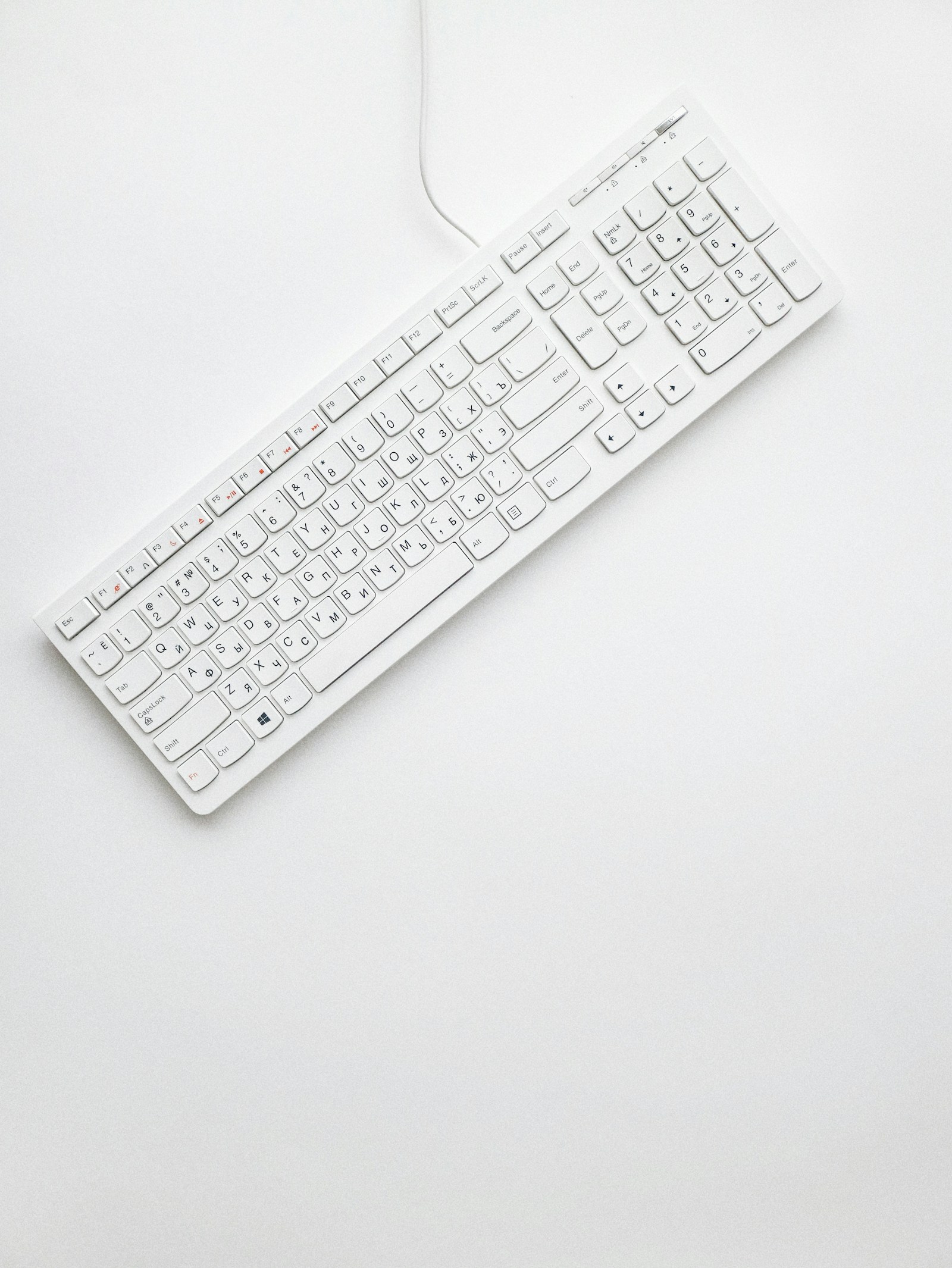
Keyboard problems range from one missing character to a whole device that disappears after sleep. A key producing the wrong symbol is not necessarily broken, and a delayed wireless connection is not the same as a stuck switch. Defining the behavior first can save both time and an unnecessary replacement.
Use harmless practice text while testing. Avoid entering passwords into unfamiliar diagnostic websites, and do not publish a recording that captures private typing. A plain text editor and the operating system's settings can answer many of the first questions without installing anything.
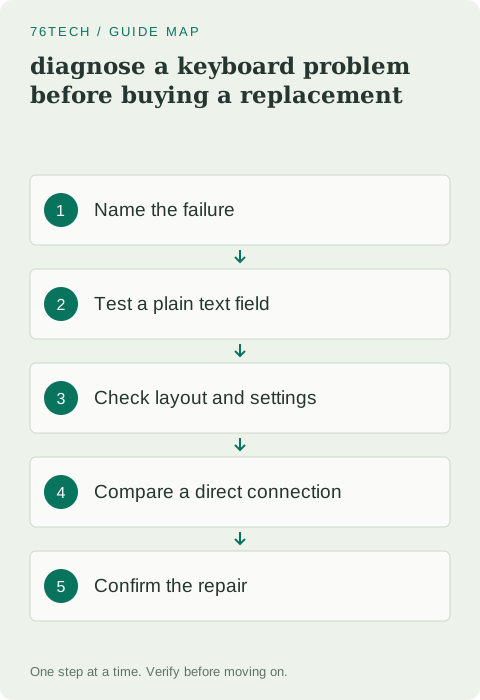
1. Identify the type of failure
Note whether the problem affects every key, a specific key, a modifier, or only a particular application. Does the key fail entirely, repeat unexpectedly, or produce a different character? Does the behavior occur immediately after startup, after sleep, or only through a dock?
Also record the keyboard's connection type: built-in, wired USB, wireless receiver, or Bluetooth. These paths require different checks. If a liquid spill occurred, stop normal use and follow the device manufacturer's service guidance rather than continuing to test an energized keyboard repeatedly.
2. Try a plain text editor
Open a basic local text editor and type a short sample that exercises the affected keys. If the problem occurs only in a browser, game, or specialist editor, inspect that application's shortcuts and input mode. A remapped action can make a key appear unresponsive even though the keyboard is sending it correctly.
Compare ordinary letters, numbers, and the modifier involved. Do not begin by changing system-wide settings when the failure exists in only one application. Establishing that boundary helps you investigate the narrowest relevant component and keeps the rest of your workflow stable.
3. Check the active keyboard layout
Look at the language and keyboard layout selected by the operating system. Similar physical keyboards can use different symbol arrangements, and switching layouts can change punctuation without affecting letters in an obvious way. Match the configured layout to the one you intend to use.
Test the exact key again after selecting the correct layout. If the symbol now matches, the physical key was not the problem. Keep only the layouts you actually need if accidental switching happens frequently, following the operating system's supported settings. Do not remove a layout used by another person without considering their needs.
4. Review accessibility and remapping settings
Features that alter key repetition, modifier behavior, or the handling of brief presses can change the experience. They may be intentional accessibility choices, so read their purpose before disabling them. Check whether a keyboard utility or application has also remapped the affected key.
Record the original settings and make one reversible comparison. If the change resolves the symptom, decide whether a more suitable setting can preserve the needed accessibility behavior. A diagnosis should help the person use the computer comfortably, not erase useful accommodations just to match a generic default.
5. Simplify the connection
For a wired keyboard, test a direct USB connection instead of a hub or dock when possible. Inspect the cable and connector for visible damage. For a wireless device, check battery charge and the receiver's placement. Keep a Bluetooth test close to the computer to reduce range as a variable.
Microsoft's mouse and keyboard support guidance provides a route for common connection and driver questions. Use the current manufacturer instructions for pairing and firmware. Avoid repeatedly removing unrelated input devices while troubleshooting one keyboard, especially if that could leave you unable to control the computer.
6. Compare another keyboard or another computer
If available, test the keyboard on a second trusted computer and test a known-good keyboard on the original machine. Keep the same plain-text exercise. A failure that follows the keyboard across computers is stronger evidence of a device problem than a failure seen in one application on one system.
For a built-in laptop keyboard, an external keyboard can provide a useful comparison and a temporary way to work. It does not repair the internal keyboard or prove exactly which internal component failed. Use the laptop's service documentation or support channel if the fault is consistent and hardware-related.
7. Clean only within the documented limits
If debris is a plausible cause, power down or disconnect the keyboard and follow the manufacturer's cleaning instructions. Do not assume every keycap is removable. Laptop mechanisms in particular can be fragile, and forcing a cap off can turn a minor obstruction into a broken assembly.
Avoid spraying cleaning liquid directly into the keyboard. If a specific mechanical keyboard supports replacing a switch, confirm the correct model and procedure before attempting it. A hot-swappable design and a soldered design require different work, even when their keycaps look identical from above.
8. Verify normal use and document the cause
Repeat the affected typing task, then check the transitions that previously triggered failure, such as reconnecting the dock or waking from sleep. Confirm that shortcuts and accessibility settings still behave as intended. A single successful keystroke is less useful than a stable result during ordinary work.
Keep a brief note of the actual explanation: incorrect layout, application remapping, depleted battery, connection issue, or a key that fails across hosts. If replacement or service is needed, that evidence helps you choose the right action. The goal is a dependable input device and an understood configuration, not a collection of changes made simply because typing felt wrong.