
Your laptop used to last through an afternoon, and now it asks for a charger before lunch. That does not automatically mean the battery is defective. A brighter screen, a new background application, video calls, or an external accessory can change runtime even when the battery's usable capacity has not changed much.
The useful distinction is between capacity and consumption. Capacity describes how much energy the battery can hold. Consumption describes how quickly the computer uses it. To understand shorter runtime, inspect both, then compare similar working conditions instead of relying on one disappointing day.
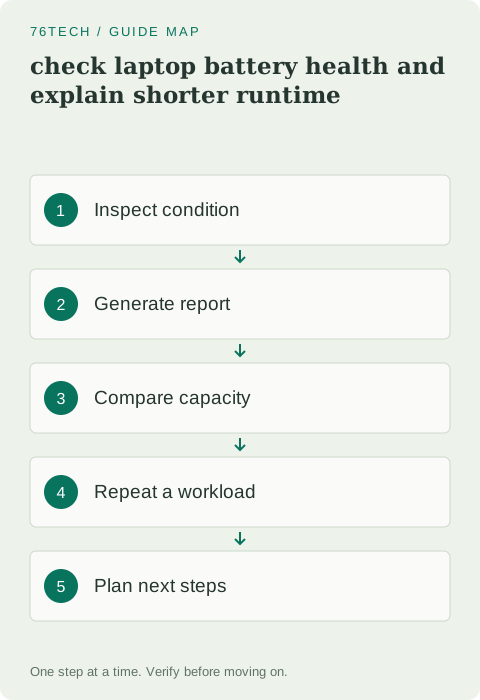
1. Start with the physical condition
Look for a case that no longer sits flat, a lifted trackpad, or other signs that the battery may be swelling. If you suspect swelling, stop using and charging the device and contact the manufacturer or a qualified service provider. Do not press the case flat, puncture the battery, or attempt to make it fit by tightening screws.
Also check the charger and cable for damage. A laptop that charges inconsistently may have a connection or power-delivery problem rather than a capacity problem. Use the manufacturer's guidance to confirm that the charger is suitable for the model. A connector that fits does not establish that the charger supplies the required power.
2. Generate a Windows battery report
On Windows, the built-in powercfg tool can generate an HTML battery report. Open Command Prompt in a folder where you can save a file, then run the following command. If Windows requests elevation, use an administrator Command Prompt and choose a writable output location.
powercfg /batteryreport /output battery-report.htmlOpen the resulting file in a browser. The command is documented in Microsoft's battery reporting guidance. The report is useful evidence, but it is not a laboratory measurement or a universal pass/fail certificate. Available fields depend on the device and its battery reporting support.
3. Compare design capacity with full charge capacity
Design capacity is the nominal capacity reported for the battery when new. Full charge capacity is the system's current estimate of how much it can hold when fully charged. Compare figures with the same units. If design capacity is 50,000 mWh and full charge capacity is 40,000 mWh, the reported capacity is about 80 percent of the design value.
That example describes an estimate, not a required replacement threshold. A person who works near a socket may find the remaining runtime adequate, while someone traveling daily may not. Look for a trend over time rather than treating a small change between two reports as proof of sudden damage. Reporting estimates can vary with use and the battery controller's observations.
4. Run a repeatable real-world comparison
Choose a task that represents your normal day: writing with a few browser tabs, attending a video meeting, or compiling a project. Note screen brightness, battery percentage, connected accessories, and start time. Use the laptop normally for a fixed period and record the remaining percentage.
Repeat on another day under similar conditions. Do not compare an offline writing session at low brightness with a high-brightness video call and conclude that the battery deteriorated overnight. You are trying to reduce obvious differences so that the result says something meaningful about the battery and workload.
5. Investigate what consumes the power
Review Windows battery usage information and look for applications that were active during the test. A background synchronization job or a browser tab doing constant work may explain unusual consumption. Close only applications you understand, then repeat the same task to see whether the behavior changes.
An external drive, a bus-powered accessory, or a second screen can also affect the situation. Disconnect nonessential peripherals for a comparison run. Keep a simple note of the configuration instead of changing several settings at once. If turning down brightness helps significantly, that is a usable finding even though it does not change the battery's underlying capacity.
6. Use charging controls that belong to your device
Some manufacturers provide charge limits or battery-conservation modes. Check the support documentation for the exact model before enabling one. A laptop intentionally stopping below 100 percent may be following a configured limit rather than failing to charge.
Avoid generic advice to repeatedly drain a modern laptop to zero as routine maintenance. If the manufacturer recommends a calibration procedure for a specific symptom, follow that procedure. Otherwise, concentrate on sensible operating temperatures, appropriate charging equipment, and a workflow that meets your needs. Do not promise that a software tweak can restore chemically lost capacity.
7. Decide what to do with the evidence
If capacity looks reasonable but runtime varies wildly with one application, work on that application's behavior. If capacity has declined substantially over time and runtime no longer meets your needs, ask about a compatible replacement and the proper service procedure. Some laptops require professional disassembly; others have documented user-serviceable parts.
Save the report date, the capacity figures, and the results of your comparison test. Bring those details to support instead of saying only that the battery is “bad.” The outcome you want is a reliable explanation and an appropriate next step, whether that is a workload adjustment, a charger check, or a battery replacement.