
A network-attached storage device can make files available to several computers without leaving one laptop running as the file server. It can also become a single place where years of valuable data accumulate. That convenience makes planning for access, failure, and recovery especially important.
Begin with the role you want the NAS to play. Is it primary shared storage, a backup destination, a media library, or several of those at once? The answer affects capacity, permissions, and the independent copies you need. Buying a box with multiple drive bays does not automatically solve all of those questions.
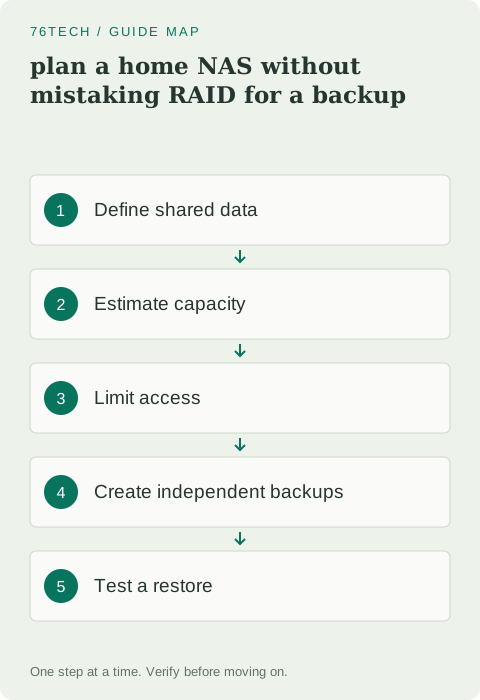
1. List the data and people involved
Identify the folders you want to share and the people who should use them. Separate family photos, personal documents, work projects, and replaceable media if their access or retention needs differ. A shared top-level folder with everyone able to modify everything may be easy to create but hard to maintain responsibly.
Decide which location will be authoritative for each collection. If photos remain on a desktop and the NAS receives a backup, that is a different workflow from moving the only working library onto the NAS. Write the relationship down so you know whether a deletion is happening in primary storage, a synchronized copy, or a recoverable backup.
2. Estimate usable capacity rather than raw drive totals
Measure the current data and consider realistic growth. Account for redundancy, snapshots or versions, application data, and the free space needed for normal operation. The sum of the drive labels is not necessarily the usable storage capacity of the chosen arrangement.
Read the manufacturer's compatibility and capacity guidance for the exact model. Drive support, expansion behavior, and recovery procedures vary. Do not assume you can add any drive later without changing the storage layout. A small written capacity plan can prevent an early upgrade that is more disruptive than the original installation.
3. Understand what redundancy protects
A supported redundant disk arrangement can help maintain availability through certain drive failures. It does not protect against every deletion, ransomware incident, theft, fire, software fault, or enclosure failure. Files can disappear correctly from every member of a redundant array if an authorized operation deletes them.
Synology explains storage concepts through its RAID information. Use your vendor's exact documentation for supported layouts and failure tolerance. Treat redundancy as an availability feature within its stated limits, then design backup separately.
4. Build accounts and permissions around use
Give people individual accounts where the platform supports them. Use the minimum access needed for each folder, and keep administrative work separate from ordinary file access. A shared administrator account makes it difficult to understand who changed something and gives routine users more power than necessary.
Test permissions with a normal user account rather than assuming the configuration is correct because the administrator can see everything. Confirm that someone can open and modify the intended files but cannot reach unrelated private folders. Keep recovery access for administration secure and documented independently.
5. Plan updates and remote access deliberately
Use the vendor's supported update process and keep a record of the installed system version. Decide who will check health notifications and failed backup jobs. A NAS placed in a cupboard and forgotten can continue serving files while an important protection process silently stops.
Do not expose administration interfaces directly to the internet simply to make access convenient. If remote use is required, choose a supported approach suited to your needs and understand its authentication and access model. Keep unnecessary services disabled and avoid adding applications whose purpose you cannot explain.
6. Create an independent backup path
If the NAS holds primary data, back it up to a genuinely separate destination. That might be another appropriate device or a supported off-site service. The right arrangement depends on data value, privacy requirements, and how quickly you need to recover, but it should not rely only on disks inside the same enclosure.
Versioned backup can help recover from accidental changes, while snapshots may provide another local recovery layer. Understand each tool's retention and deletion behavior. Do not describe a local snapshot as protection from losing the entire NAS. Draw the copy relationships so the failure boundaries are visible.
7. Test recovery with a small collection
Create a harmless folder, run the backup, change a file, and restore the earlier version to a different location. Open the restored result and verify the expected contents. Also confirm how you would recover if the NAS itself were unavailable, not merely if one folder needed an older version.
Record the required software, account access, and destination. If recovery needs a key, store it securely outside the failed system's only storage. A successful backup job is useful, but a documented restore demonstrates that you can get data back in a form you can use.
8. Maintain a simple ownership routine
Assign responsibility for health checks, updates, permissions, and backups even in a household. Review the system after major changes such as adding drives or moving a primary library. Keep old source copies until migration and backup coverage have been verified.
The NAS becomes dependable when everyone understands where files live and how recovery works. More bays and more services do not automatically produce that result. A modest configuration with clear access and tested independent backups is often easier to trust than an elaborate storage system whose only recovery plan is that a drive might not fail.