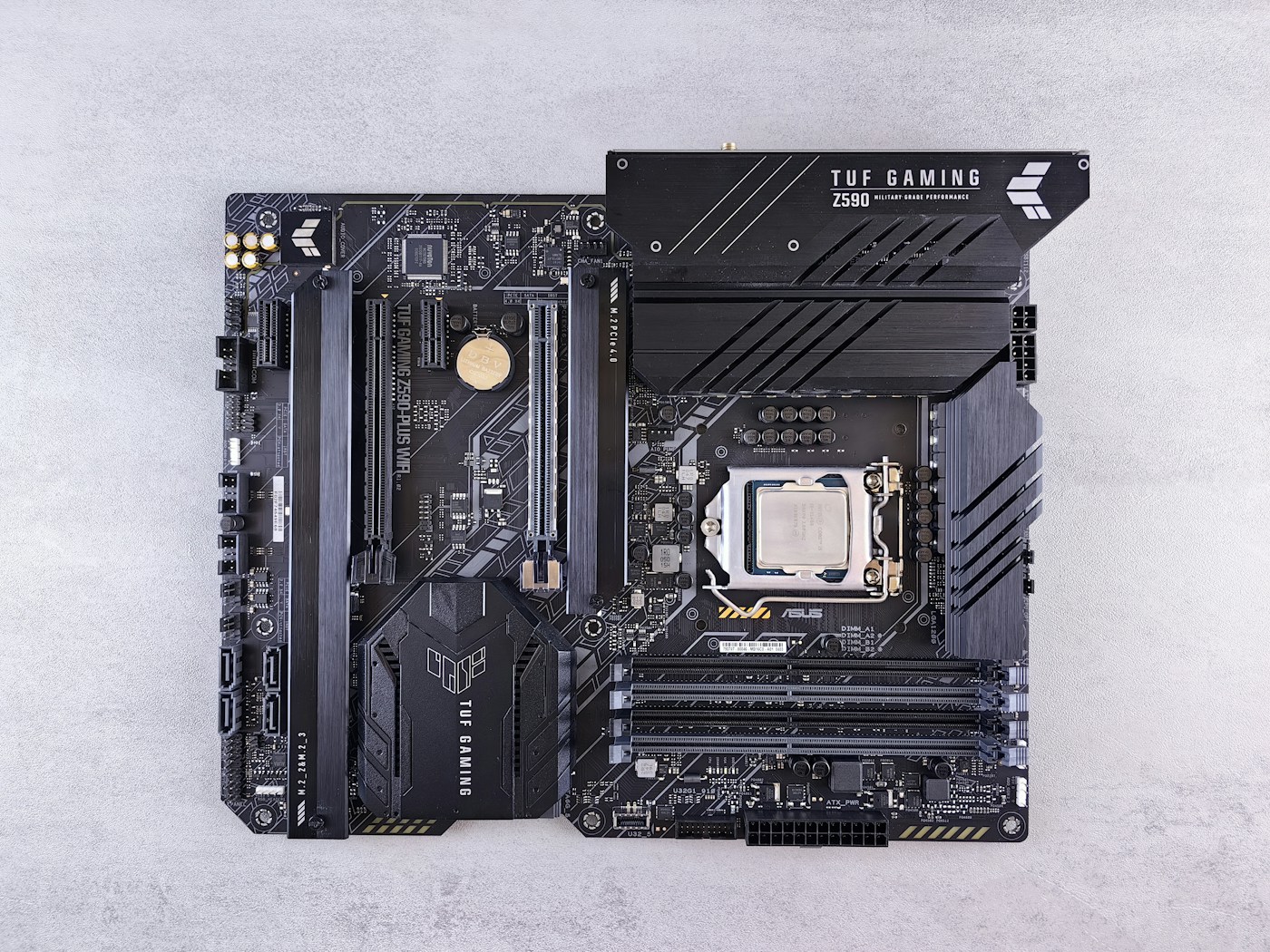
A slow computer does not automatically need replacing. A browser with too many tabs, a nearly full drive, and an application waiting on the network can all feel like a hardware problem. Start by measuring the task that feels slow.
1. Reproduce the slowdown
Open the application or file you normally struggle with. On Windows, press Ctrl + Shift + Esc to open Task Manager. On macOS, open Activity Monitor from Applications → Utilities. Watch CPU, memory, and disk activity while you repeat the problem.
2. Read the pattern
- CPU stays busy: identify the process using it. A single demanding application may be limited by the processor; a background process may just need time to finish.
- Memory pressure rises: close unused applications and repeat the task. On macOS, the Memory Pressure graph is more useful than the amount of free memory alone.
- Disk activity stays high: check whether updates, indexing, or file syncing are active. A hard drive can be a bottleneck even when the processor is mostly idle.
3. Check the basics first
Restart, finish pending updates, and check available storage. Review startup applications and remove only the ones you understand and do not need at sign-in. Avoid registry cleaners and tools promising one-click performance miracles.
4. Match the upgrade to the evidence
More RAM can help when your working set exceeds available memory. An SSD can make a large difference if you still run your operating system from a mechanical hard drive. A graphics card mainly helps workloads that use it, such as games, 3D rendering, and some video editing.
Before purchasing anything, check the computer or motherboard manual for supported components, physical clearance, power requirements, and whether the part can be replaced at all. Back up important data before opening the machine or changing a drive.