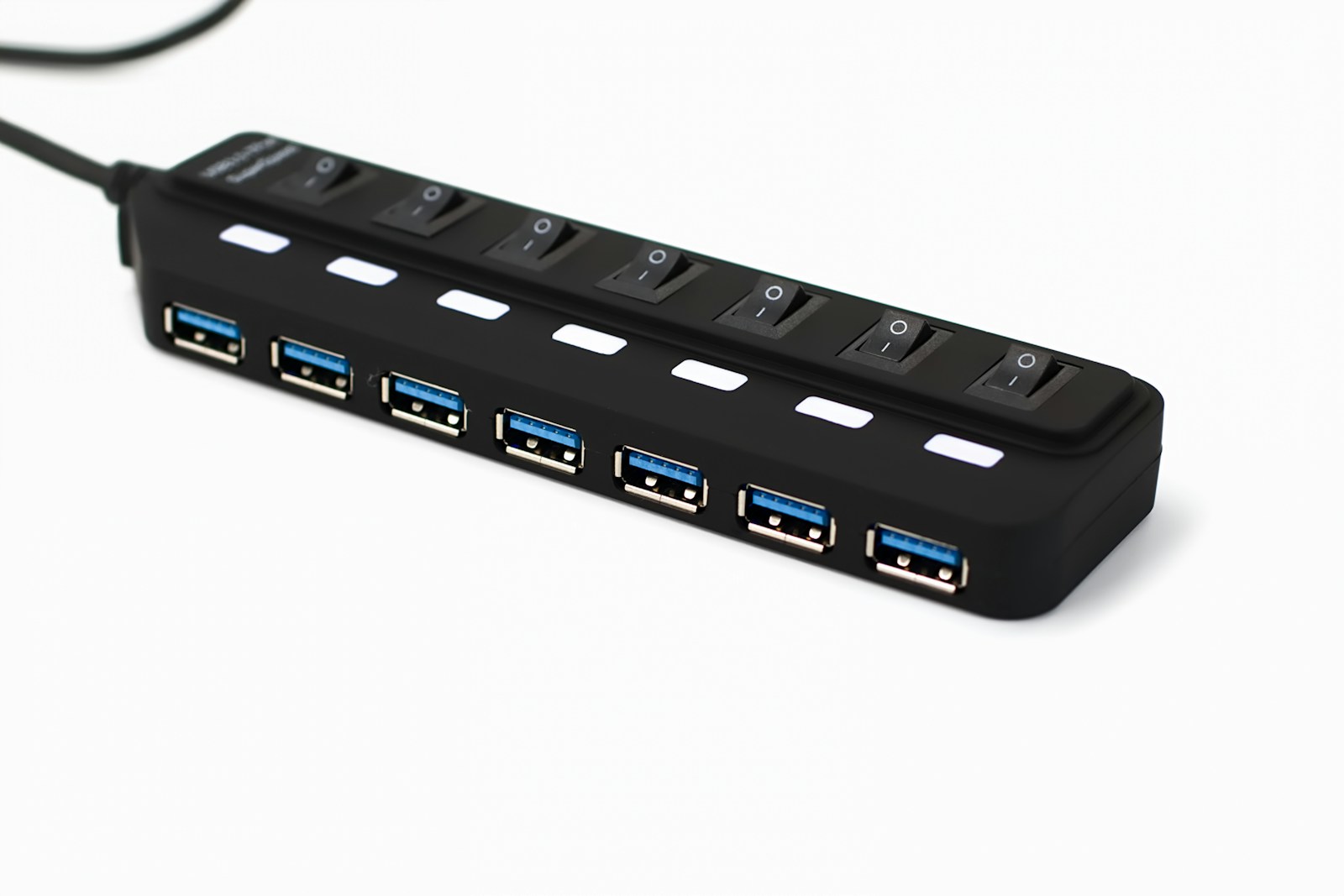
USB-C makes a desk look simple: one cable connects a laptop to a screen, keyboard, storage, and power. The confusing part is that two identical-looking ports can support different features. A dock can be perfectly functional and still be the wrong match for a computer or the way you intend to use it.
Treat the setup as a chain with four parts: the computer, the cable, the dock, and the connected devices. Every required feature must work across that chain. Start with a written list of what you need instead of a product photo showing many sockets.
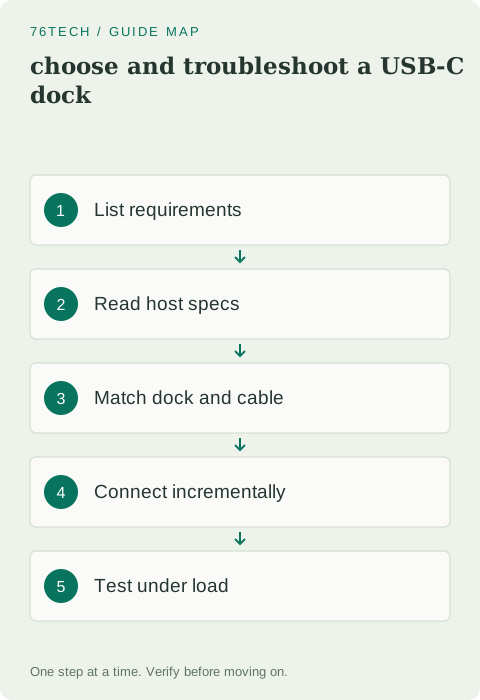
1. Write down the actual workload
List your monitors, their resolution and refresh rate, your keyboard and mouse, any external drives, and whether the dock must charge the laptop. Include less obvious devices such as a webcam, audio interface, or wired network adapter. A desk used for email has different needs from one used to edit video from an external SSD while driving two displays.
Decide which connections are essential and which are conveniences. If the laptop already has a reliable power connector, charging through the dock may be optional. If you depend on two extended monitors, display compatibility is non-negotiable. This small exercise prevents paying for a feature you do not need while overlooking the one that determines whether the setup works.
2. Read the computer's port specifications
Check the exact laptop model, not just its product family. Look for support for video output, charging input, USB data rates, USB4, or Thunderbolt where relevant. Do not infer capability solely from the connector shape. Microsoft's USB-C troubleshooting reference explains how unsupported combinations can result in limited display, charging, or device functionality.
If the laptop has several USB-C ports, they may not all behave identically. Mark the port you intend to use in your setup note. A dock that works on one side of a laptop but not the other can reveal a port-capability difference rather than a random failure.
3. Match display support to the operating system
Read the dock manufacturer's display compatibility table. Confirm the number of displays, resolution, refresh rate, and operating system combination. Some multi-display arrangements depend on technologies that are not supported in the same way across every computer and operating system.
Also distinguish native video output from a USB graphics solution that requires software. Neither label is enough to decide quality for every user, but the distinction matters for driver installation, managed computers, protected video, and troubleshooting. If the dock needs a driver, obtain it from the manufacturer's official support site and confirm that your device policy permits it.
4. Check the power budget and cable
The advertised power input to a dock may differ from the power available to the laptop. The dock itself and attached devices can consume some of that budget. Compare the dock's documented host charging output with the laptop manufacturer's requirements. A machine may charge at idle yet lose battery charge during demanding work if the supplied power is insufficient.
Use the dock's supplied host cable when available. A cable that charges a phone is not automatically suitable for high-speed data or video. Avoid extending the connection with an unknown adapter while establishing the baseline. If you need a longer cable later, choose one explicitly rated for the required capability and test the entire setup again.
5. Connect in a controlled order
Start with the dock powered as instructed, the laptop, and one basic accessory. Add one monitor next. Confirm that the display mode, resolution, and refresh rate are correct. Then add the second monitor if supported, followed by storage, networking, and other peripherals.
When a problem appears, remove the last addition and repeat the check. This gives you a useful boundary. If everything works until an external drive is connected, investigate power and bandwidth demands around that device rather than reinstalling every driver on the computer. Keep the comparison as similar as possible between attempts.
6. Test realistic simultaneous use
Open your normal workload and use the connected devices together. A webcam, storage transfer, and multiple screens can expose limits that are invisible when only a mouse is attached. Watch for repeated disconnects, display dropouts, or charging warnings, and record which combination triggers them.
Then test sleep and wake, reconnecting the host cable, and a normal restart. A dock that behaves well only immediately after installation may still be awkward for daily use. Check the manufacturer's firmware guidance if a repeatable issue remains, but apply updates only to the exact model and follow its power and connection requirements.
7. Keep a compatibility record
Save the dock model, cable model, host port, power adapter, monitor settings, and any installed driver version. This record is especially valuable if you later change laptops. “USB-C dock” is too broad a description to explain why yesterday's setup worked and today's does not.
Success means more than every device appearing once. The laptop should charge as expected, displays should retain usable modes, and accessories should remain stable during real work. When those conditions hold, label the working cable and leave the connection chain simple. Most reliable desks are built from understood components, not the greatest possible number of adapters.