
The best first automation often looks unremarkable. It produces a reliable report, prepares a predictable folder, or saves you from checking the same information by hand. Its value comes from removing uncertainty and repeated effort, not from having a large script or an impressive schedule. Start with a task you understand well enough to describe without mentioning code.
Imagine that you regularly inspect a project folder to find large files before sharing it. A small inventory report could save time without moving or deleting anything. That makes a good practice workflow: the input is a folder you choose, the output is a report, and you can inspect the result against the original files.
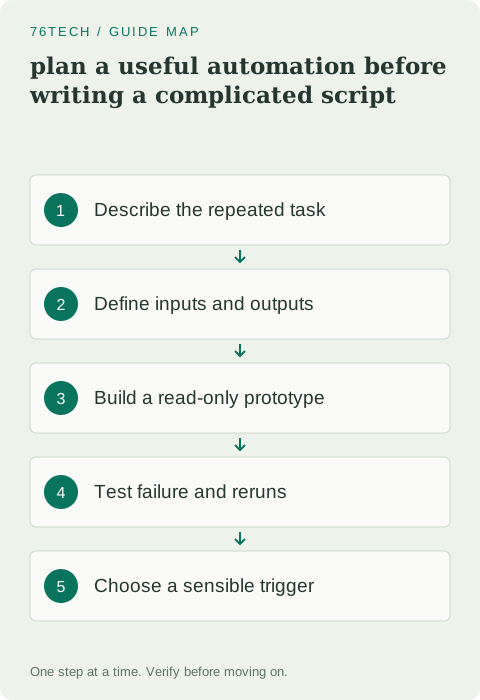
Describe the task as a short contract
Write down what starts the task, which information it uses, what it produces, and how you know it finished correctly. For the inventory example, the contract could say that a manually selected folder produces a list of its immediate files sorted by size. Subfolders are excluded in the first version to keep the scope easy to check.
Define exclusions too. Perhaps the folder contains private documents, generated files, or work you do not own. A script should not silently broaden its search simply because adding recursive traversal is convenient. Clear boundaries reduce surprises, and they make a later change in scope something you can review rather than an accidental side effect.
Check whether repetition really needs automation
Observe a few manual runs before deciding what to implement. Are you repeating the same sequence, or making a different judgment every time? Automate the stable part and leave the judgment visible. A report that helps you choose files may be more useful than a script that tries to decide what you should delete.
Estimate the cost of maintenance as well as the minutes saved. If a workflow depends on an interface that changes every week, it may need more care than a simple local file inspection. Prefer inputs and tools with clear behavior. The first version should solve one recurring problem well enough that you want to use it again.
Build a read-only prototype
In PowerShell, the following example lists only the files directly inside a folder. Replace the path with a practice folder you control. It does not inspect subfolders, delete files, or send the results anywhere. That makes the initial result easy to compare with File Explorer.
$inventoryFolder = 'C:\Practice\Project'
Get-ChildItem -LiteralPath $inventoryFolder -File |
  Sort-Object Length -Descending |
  Select-Object Name, Length, LastWriteTime
Read the names and sizes rather than immediately converting the command into a scheduled task. Check an empty folder and a folder with spaces in its name. Notice that -LiteralPath treats the supplied path literally, which is helpful when names contain characters that might otherwise be interpreted as wildcard syntax. These small checks establish what your workflow actually covers.
Design the report for its reader
A report needs enough context to remain useful after the terminal window closes. Include the folder inspected, the time of the run, and the units used for sizes. Bytes are precise, while rounded megabytes may be easier to skim; make the choice explicit instead of mixing them without labels.
If you later export CSV, choose an output destination outside the folder being inventoried and decide whether an existing report may be overwritten. That prevents the report itself from affecting future inventories and avoids accidentally replacing something important. Review whether filenames reveal information you would not want to share before attaching a report to a message or uploading it.
Decide what failure looks like
A missing folder, an unreadable file, and an empty successful result are different outcomes. Your workflow should distinguish them. A report containing zero rows should not automatically mean that every step worked, especially if an error occurred before the enumeration finished. Keep diagnostic messages somewhere the person using the automation will actually see.
Test with a deliberately nonexistent practice path and confirm that the failure is understandable. Do not hide every error behind a generic success message. For a later unattended version, define whether a failure stops the task, records a partial result, or requests human review. Choose that behavior based on the consequences of using incomplete information.
Think about running it twice
Repeated execution is ordinary, not exceptional. A user may click twice, a scheduler may retry, or a computer may restart halfway through a job. Ask what happens if the workflow runs again with the same inputs. A read-only inventory is relatively straightforward, but an automation that creates records or moves files needs much more deliberate duplicate handling.
Separate producing a proposed change from applying it. A dry run should show the exact affected items and intended actions, not merely say that the script is safe. Once you add mutation, test in a disposable copy with known contents. Keep the original report and a way to explain what happened if the result differs from expectations.
Choose a trigger after the task works
Run the workflow manually several times before scheduling it. A task that works only because your terminal happens to have the right folder or credentials will often fail unattended. Scheduled execution may use a different account, working directory, or environment, so make necessary assumptions explicit and verify them in that context.
Pick a frequency that matches the problem. A weekly report does not need to run every minute. Define where outputs go, how long they are retained, and how failures become visible. Avoid generating endless notifications for unchanged information; the automation should reduce your work rather than create a second inbox demanding attention.
Leave a small operating note
Document the purpose, expected input, command, output location, and a way to stop the scheduled version. Include an example successful result and one common failure. A short note helps your future self determine whether a surprising result is a bug, a changed input, or a reasonable outcome.
The inventory exercise is complete when its scope is predictable, its output is understandable, and an unsuccessful run cannot masquerade as success. You can then expand one boundary at a time, such as adding explicit subfolder traversal. Use the PowerShell Get-ChildItem documentation to understand the options before enlarging the workflow. Small automations earn trust through clear behavior.