
A downloaded file can have the expected name and still contain different bytes from the publisher's intended release. A checksum gives you a way to compare the contents rather than the label. It is particularly useful for operating-system images, large archives, and files you transfer between storage devices.
The comparison is only as trustworthy as the reference value. If you obtain both a malicious file and its matching checksum from the same untrusted page, the match does not make the file safe. Begin with the publisher's official download and verification instructions, then use the checksum as one part of that process.
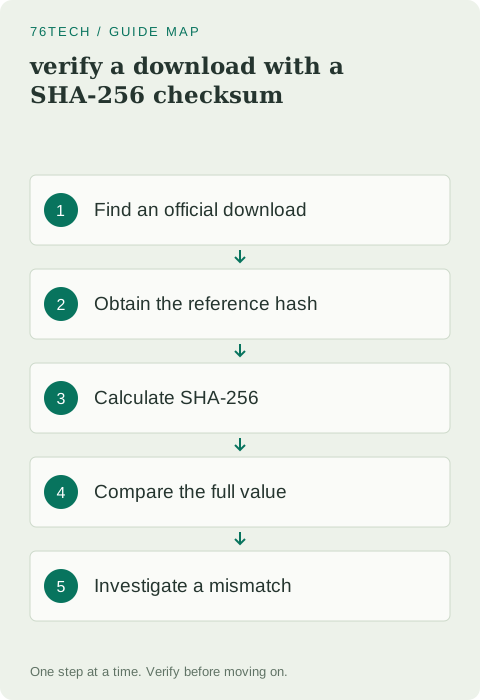
1. Identify the exact artifact
Check the file name, version, operating system, and architecture before downloading. A publisher may provide several packages that look similar but legitimately have different checksums. Record which one you selected so that you do not compare a Windows archive against a Linux image's reference value.
Use the official site or its documented distribution channel. Avoid substituting a mirror found in an advertisement simply because the main download is slow. If mirrors are supported, read the publisher's method for establishing the authenticity of the release, which may include a signed checksum file as well as a plain hash.
2. Find the algorithm and reference value
Look for a checksum specifically associated with your artifact. Common pages label the algorithm as SHA-256. Do not mix algorithms: a SHA-256 result will not match an MD5 reference even when calculated from the same file. The lengths and values differ by design.
Copy the complete reference into a local note or use the publisher's verification tool. Include its source and the artifact name. If the page provides signatures, follow that documented process for authenticity. A checksum comparison and signature verification serve related but distinct purposes, and one should not be presented as a universal substitute for the other.
3. Calculate the hash in Windows
Open PowerShell and use Get-FileHash with the exact file path. The following example uses a placeholder path; replace it with the actual downloaded file. Quote the path and use LiteralPath so special characters in the name are not treated as wildcard patterns.
Get-FileHash -LiteralPath 'C:\Users\YourName\Downloads\example.iso' -Algorithm SHA256Microsoft documents the command in its Get-FileHash reference. Calculating a hash reads the file and can take time for a large image. Let the operation complete before deciding that a delay means something is wrong.
4. Compare the full value
Check the complete hexadecimal result, not only its first and last few characters. Letter case in the displayed hexadecimal text does not change the underlying value, but missing or transposed characters matter. An automated exact comparison can reduce transcription mistakes when you have a clean trusted reference.
Also confirm that you hashed the completed download rather than a temporary partial file. Some browsers use a temporary extension while downloading. If you interrupted or resumed a transfer, verify the final artifact after the browser reports completion. File size is a useful additional check but does not replace the hash comparison.
5. Understand what a match means
A matching cryptographic hash provides strong evidence that the downloaded bytes match the referenced artifact. It does not guarantee that the software is appropriate for your device, free of bugs, or free of malicious behavior if the trusted publisher itself distributed something harmful.
The distinction matters when someone sends you a checksum with an attachment. You can verify that the attachment matches their stated bytes, but you still need to decide whether the sender, software, and requested action are trustworthy. Verification should clarify your decision, not replace all other judgment with a green checkmark.
6. Investigate a mismatch without running the file
First recheck the artifact and algorithm. Confirm the expected version and architecture, and calculate the result again if the file may still have been downloading. If those details match and the hash still differs, do not run or install the file merely to see whether it works.
Download again from the official source to a new clearly named location and compare it. A second download that matches suggests the first transfer or local file was different. If repeated official downloads disagree with the published value, consult the publisher's release notes or support. Preserve the evidence rather than silently ignoring it.
7. Use hashes for important file transfers
You can also calculate SHA-256 before and after copying a valuable archive to another drive. Matching results help verify that the copied file's contents are unchanged. This is useful when a progress window says the transfer finished but you want stronger confirmation for a large artifact.
For a folder containing many files, use a suitable trusted tool or a small understood script that records paths and hashes. Keep the manifest alongside your transfer notes. Remember that a single hash verifies one file; it does not automatically verify every file in a directory or confirm that an expected item was never omitted.
8. Keep the verification record useful
Save the artifact name, version, algorithm, trusted reference source, and date of comparison. You rarely need to keep a screenshot of an entire terminal full of unrelated paths. A concise record is easier to interpret later and exposes less private information if you share it for support.
The habit is straightforward: obtain the correct official artifact, calculate the stated algorithm, compare the complete result, and stop on unexplained disagreement. Over time, that process becomes a quick addition to important downloads and transfers. Its value comes from a trustworthy reference and careful targeting, not from the apparent complexity of the hexadecimal string.