
When a website will not open, DNS is often blamed because changing a resolver feels like an easy fix. DNS translates a name into information used to locate a service, but a page can also fail because of routing, server availability, certificates, account restrictions, or the browser itself. A useful investigation distinguishes those cases before changing settings.
Begin with the exact address and error message. This guide concerns ordinary browsing on a network you control. Work and school networks may rely on internal DNS names or managed resolver policies, so changing those settings can break access that otherwise works.
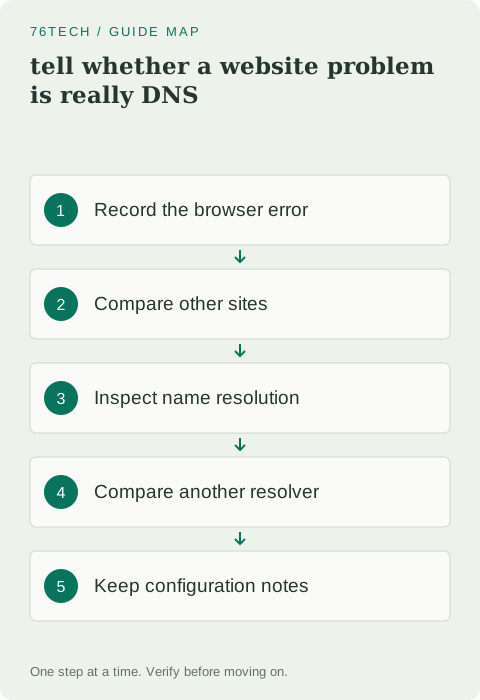
1. Read the failure precisely
Copy the browser's error wording and note whether the problem affects one domain or many. “Name not resolved,” “connection timed out,” and a certificate warning describe different stages. Do not bypass a certificate warning to test whether DNS is working; that introduces a separate trust problem.
Check the address for a typo, especially after copying it from a message. A misspelled domain can produce a genuine resolution failure that no network reset will fix. If a bookmark worked yesterday, inspect the current address and consider whether the service changed its location or is experiencing an outage.
2. Compare a few known websites
Try two unrelated sites you normally use. If they load and only one service fails, the computer has at least some functioning internet access. That does not settle every DNS question, but it narrows the scope and discourages an unnecessary full-network overhaul.
Use the service's official status page if available. Also compare another trusted device on the same network. If the same domain fails everywhere, the issue may lie in shared networking or the service. If it fails only in one browser, examine browser-specific configuration before blaming the router.
3. Ask the configured resolver a simple question
On Windows, nslookup can show whether a name receives a DNS answer. Use a public domain you are authorized to query, replacing the example as needed. This is a diagnostic request; it does not change your resolver configuration.
nslookup example.comRead both the responding server and the result. An address answer demonstrates that this lookup succeeded at that moment. It does not prove that the website will load or that every record required by a complex application is healthy. A timeout, nonexistent-name response, and server failure should also be distinguished rather than grouped as one error.
4. Compare a public resolver only when appropriate
For a public domain on a personal network, a query to another resolver can provide a comparison without replacing your configured DNS server. Cloudflare describes this method in its resolver troubleshooting documentation.
nslookup example.com 1.1.1.1Do not send confidential internal hostnames to a public resolver. Also remember that network policy may block direct queries, so a timeout against a public server does not automatically mean that your domain is broken. Record what each test actually showed and keep the normal network configuration unchanged during comparison.
5. Account for browser-specific resolution
Browsers can use secure DNS settings that differ from the operating system's resolver path. If the command-line lookup succeeds while the browser reports a name-resolution failure, review the browser's documented DNS behavior and any configured provider. Extensions, proxies, and managed policies may also affect the path.
Change only a setting you understand and record its original state. If an organization manages the browser, ask support rather than defeating a policy. A useful comparison might be a second supported browser with its ordinary configuration, not a collection of hidden flags whose effects you cannot explain.
6. Separate stale information from a persistent fault
DNS answers can be cached, and changes may not appear everywhere immediately. If you own a domain that was recently updated, check the relevant authoritative records and the expected caching period. Repeatedly editing the records in response to every different answer can prolong confusion.
For a domain you do not manage, avoid treating temporary differences between resolvers as permission to edit local host files or force an address from an old forum post. Services can use multiple addresses and routing arrangements. A manually forced address may work briefly while creating a difficult problem later.
7. Decide whether a setting change is justified
If consistent tests show that the configured resolver fails for a public domain while another appropriate resolver succeeds, review your provider's guidance. Before changing a personal device or router, note the current settings and understand who else the router affects. Keep a route back to the original configuration.
Do not replace organization DNS, disable encryption, or change network isolation as a generic remedy. If name resolution succeeds but the connection still fails, move on to the relevant connection or application diagnosis. The investigation has achieved something useful by excluding one layer.
8. Give support a compact account of the evidence
Include the domain, exact browser error, time, devices affected, and the results of the configured and comparison lookups. Omit unrelated internal addresses and private browsing information. A clear report helps someone identify whether the problem is authoritative DNS, a resolver, a network path, or a service.
The best outcome is an explanation that matches the observed failure. Sometimes DNS is the cause; sometimes it is simply the first familiar technical word attached to an unrelated outage. Working layer by layer lets you fix the right thing and leaves fewer unexplained network changes behind.