Wired networking removes many of the variables associated with Wi-Fi, but it does not make every connection problem obvious. A loose cable, the wrong router port, an adapter issue, or an internet outage can all end with the same complaint: a website will not load.
Work from the physical connection outward. Each step should answer a question and narrow the next action. This guide assumes an ordinary home network that you control. On an office network, preserve the existing configuration and report the evidence to the administrator rather than changing addresses or bypassing network controls.
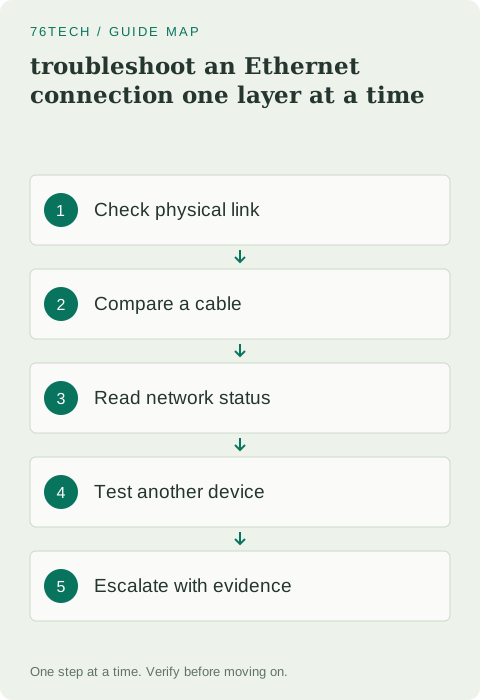
1. Draw the connection in one line
Write down the path from the computer to the router. It might be computer → USB adapter → cable → wall socket → switch → router. That path contains more possible failure points than a direct cable, and seeing it in writing helps you choose an effective comparison.
Check power to any active device in the path. A small switch under the desk can lose power while the computer and router continue working. If the connection previously worked, note what changed: a moved desk, a different dock, a new cable, or a recent system update. Begin with the changed part instead of treating every component as equally suspicious.
2. Inspect the cable and correct port
Make sure the connectors are fully seated and the cable is not visibly crushed or damaged. On a typical home router, the computer connects to a LAN port, not the WAN or Internet port reserved for the upstream connection. Labels vary, so use the router's documentation if the distinction is unclear.
Try a known-good cable of suitable length and, where practical, another LAN port. Microsoft's Ethernet troubleshooting guide includes these basic isolation checks. Change one item at a time. Swapping the cable, adapter, router port, and network settings together may restore service but will not identify the cause.
3. Read the operating system's connection status
Open network settings and check whether Ethernet is detected and connected. “Cable unplugged,” “unidentified network,” and “connected without internet” describe different situations. Copy the exact wording into your note rather than translating all of them into “offline.”
If the adapter is missing entirely, check its physical connection and the computer manufacturer's support information. A USB network adapter connected through a dock adds another layer. Test it directly if that is supported. Do not uninstall the only working network driver without a recovery plan and access to the appropriate installer.
4. Separate local connectivity from internet access
Try a familiar local device or the router's documented management address, if you normally have permission to access it. Do not change settings merely to test access. If local resources work but internet sites do not, the physical Ethernet link may be fine and the problem may be farther upstream.
Compare more than one website. One unavailable service does not prove that the whole internet connection is down. If your connection requires a provider sign-in or account action, the status page may explain it. Avoid entering credentials into an unexpected page until you have verified that it belongs to the provider you intend to use.
5. Compare another device on the same path
When possible, connect a second computer using the same cable and router port. If it works, attention shifts toward the first computer or its adapter. If both fail, investigate the shared path. Alternatively, compare the original computer on a known-working wired connection.
Wi-Fi can provide a temporary workaround and another useful observation, but remember that it may use a different path or network. Record whether the comparison is on the same router and internet service. A mobile hotspot working normally does not demonstrate that your home router is healthy; it demonstrates that the computer can connect through another service.
6. Restart shared equipment deliberately
If a router restart is appropriate, tell other users first and follow the manufacturer's process. Restarting interrupts calls, uploads, and connected devices. Do not press the factory-reset button: that can remove configuration and is different from a power cycle.
After the equipment has fully restarted, repeat the same test. Avoid repeatedly cycling power without checking the result. If the issue returns after a predictable interval, that pattern is worth recording for support. A temporary improvement is useful evidence, but it is not necessarily a complete repair.
7. Use diagnostics before broad resets
Windows provides a Network and Internet troubleshooter through Get Help. Read its findings and keep any relevant error text. A full network reset is a later option because it can remove adapter settings and affect VPN or virtual-network software. It should not be the opening move for a cable that may simply be loose.
When asking for help, provide the connection path, exact status, devices affected, and the comparisons that succeeded or failed. Leave out unrelated private network details. A concise report such as “two computers fail on this cable, both work on another cable in the same port” is far more actionable than “the internet is unstable.”