
A good folder system answers practical questions quickly: where is the current file, which version should I send, and what can I archive? It does not need an elaborate taxonomy or a dozen nested levels. The best system is small enough that you can use it when you are busy.
Start with active work rather than trying to reorganize years of accumulated files in one afternoon. Moving everything at once can break links, confuse synchronization, and separate a project from the assets it needs. A gradual migration gives you a chance to test the structure against real tasks.
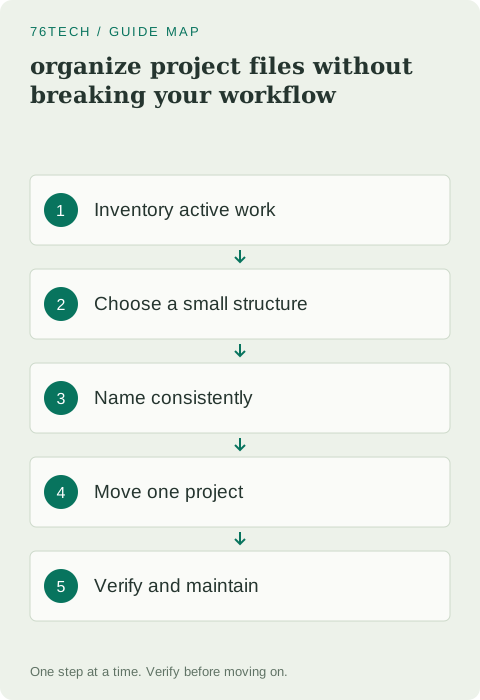
1. Inventory what you actually work on
List a few current projects and the kinds of files they contain. A writing project may need drafts, references, and exports. A software project may have source code, documentation, and generated output. A video project may depend on original media stored outside the project file itself.
Identify where the authoritative copy currently lives. Is it in Documents, a synchronized folder, a shared drive, or an external disk? If two folders both seem current, resolve that uncertainty before moving either. Organization cannot repair ambiguity about which file contains the latest approved work.
2. Choose a shallow, purpose-based structure
For many personal workflows, Active, Reference, and Archive are enough at the top level. Put one folder per project under Active. Within a project, add subfolders only when they help distinguish meaningful groups such as Source, Assets, and Exports.
Use names that make sense without remembering a private abbreviation scheme. A folder named Client-Website is easier to recognize than CW2 if you revisit it months later. Avoid embedding a status in every folder name if that status changes frequently; a stable project name with an internal status note may be easier to maintain.
3. Define file names around retrieval
Choose a simple naming pattern for files that leave the project. A useful example is project-description-date-version, with a sortable date such as 2026-09-27. The exact pattern matters less than using it consistently and keeping the meaningful part visible.
Avoid names such as final-final-revised-new. If a document is being reviewed, use an explicit revision or date and record which version was approved. For collaborative work in a system with built-in version history, do not automatically duplicate every revision as another file; understand the platform's history and recovery behavior first.
4. Separate editable sources from deliverables
An editable document, design file, or source-code project serves a different purpose from the PDF, image, or packaged output you send to someone else. Keeping exports in a clear location reduces the chance that an old draft is mistaken for the deliverable.
Do not discard source material just because an export exists. A flattened image cannot replace an editable design, and a rendered video cannot replace the timeline and original clips. Before archiving, list the dependencies needed to reproduce the final result. This is especially important when applications link to assets instead of embedding them.
5. Migrate one project and test it
Copy one active project into the proposed structure, preserving the original until the new arrangement has been checked. Open it using the application you normally use. Check linked images, data sources, scripts, and any relative paths. A folder that looks tidy in File Explorer may still contain broken references.
Run one representative task: export a document, build the application, or open a media timeline. Confirm that the output matches expectations. If the application offers a supported collect, package, or move-project feature, consider that instead of manually relocating linked assets. Follow the application's documentation for its specific file model.
6. Treat cloud synchronization carefully
Moving a large synchronized folder can trigger uploads, downloads, or deletions across devices. Check synchronization status before and after the move, and avoid reorganizing the same project on two devices simultaneously. Make sure collaborators understand any shared location change.
Remember that a file visible in a cloud folder may not be available offline. Verify local availability before travel or before relying on an external backup job. If you use Windows, Microsoft's file and storage guidance distinguishes local space management from the underlying files. Use the provider's supported controls rather than guessing from an icon.
7. Create an archive rule you can explain
Decide when a project moves from Active to Archive. A useful rule might be that the deliverable is approved, invoices or administrative steps are complete, and the source package has been verified. Add a short README describing the project, the important files, and any software needed to reopen it.
Archiving should change the project's status, not remove its recovery path. Keep the archive covered by backups and test a few older files periodically. If sensitive data has a defined retention period, follow that requirement instead of keeping everything forever simply because storage is available.
8. Maintain the system in small sessions
Set aside a short weekly review for the desktop and Downloads folder. Move active material into the correct project, delete only clearly replaceable clutter, and name important exports before you send them. This prevents an inbox folder from becoming an undocumented archive.
Judge the system by how quickly you can find and reopen real work. If a folder is consistently hard to choose, simplify it. If every project needs a different deep structure, let project needs guide the details while keeping the top level predictable. A useful filing system reduces decisions; it should not become another project that needs constant administration.