
A laptop migration is more than copying the Documents folder. Your work may depend on a particular application, a browser profile, an account recovery method, a local project, or a file stored somewhere you rarely open. The old computer can appear nearly empty while still holding the one item that makes a task possible.
Treat the move as a short period of overlap. Keep the old device available while you prepare and verify the new one. A successful migration means you can perform your normal work and recover important information, not simply that a transfer tool displayed a completion message. A checklist built around real tasks catches more omissions than a list of folder names alone.
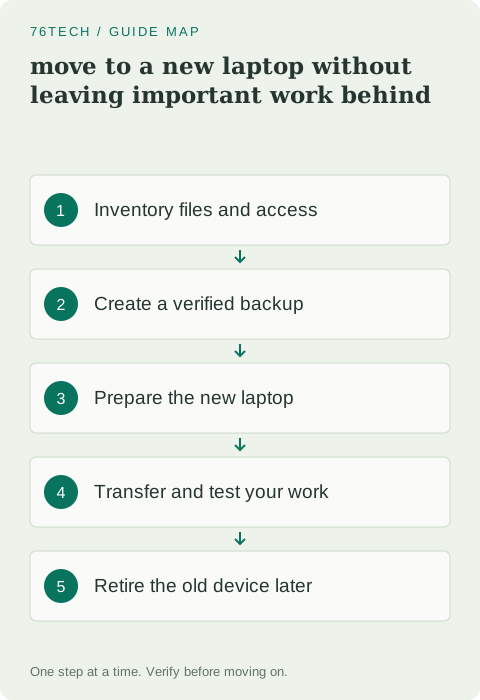
Inventory what you actually use
Write down the tasks you performed during the last typical week. For each, identify the application, account, files, and any attached device it needs. Include work that happens less often but matters, such as opening archived tax documents, editing a project, or retrieving a saved recovery code.
Inspect your Desktop, Documents, Downloads, Pictures, and any custom storage folders. Check other internal drives and external devices as well. A cloud folder may contain items that are placeholders rather than full local copies. Confirm which files are available offline and which require the cloud service before assuming a simple folder copy includes everything.
Separate files from application setup
Copying an application folder does not reliably reinstall a Windows application. Many programs need installation, registration, supporting components, or activation. Record the official download source and license information for the tools you use. Check whether a paid application limits the number of activated devices before setting it up on the new computer.
Use supported export features for application-specific settings when available. Some settings contain machine-specific paths or credentials, so copying them indiscriminately can produce confusing failures. For development work, inventory source repositories, local changes, environment instructions, and any data outside version control. A repository remote is useful, but it does not necessarily contain your uncommitted work or ignored files.
Confirm account recovery before moving
Make sure you know how to sign in to the accounts required on the new laptop. Test access to your password manager and confirm that recovery methods are current. If an authentication device or passkey is available only through the old machine, prepare the provider's supported additional access method before retiring that device.
Do not collect passwords into an unprotected migration spreadsheet for convenience. Keep sensitive recovery information in an appropriate secure location and follow each provider's setup process. Work or school devices may have management rules that affect account transfer and installation; use the organization's approved process when the computer or its data belongs to them.
Create a backup that you can inspect
Before the migration, create a separate backup of important files using a method suitable for your setup. Keep it distinguishable from the temporary transfer copy. If the transfer fails or you discover that an item was changed unexpectedly, an earlier verified backup provides another point of recovery.
Open a few important files from the backup and check their contents, not just their names. Include a large file, a recently edited document, and an item from a less obvious folder. Confirm that you can read the backup with the tools and credentials you will still have after the move. Encryption is valuable, but losing its recovery information can make a perfectly intact backup unusable.
Prepare the destination before copying
Set up the new laptop, install operating-system updates, and obtain required applications from their official sources. Confirm that the machine has enough free storage for the files you intend to transfer. Create a sensible destination structure before mixing several copies of similarly named folders.
Choose a supported transfer method that matches your devices and accounts. An external drive, a cloud service, or a documented PC transfer feature can all be appropriate in different circumstances. Check what your chosen method includes and excludes. Do not assume that a feature called backup or transfer captures every application, local file, and account configuration automatically.
Copy in understandable groups
Transfer one category at a time, such as active documents, photos, and project folders. Keep a record of the source and destination for each group. This helps you detect missing folders and prevents a failed operation from leaving you uncertain about which parts need another attempt.
Prefer copying while you verify the migration rather than removing the originals immediately. If you use cloud synchronization, understand whether changes on one device propagate to the other. Deleting a synchronized folder as a cleanup step can have consequences beyond the old laptop. Pause and confirm the service's behavior before treating synchronization as an independent backup.
Test complete workflows on the new machine
Open an important document, edit a disposable copy, and save it where you expect. Run a development project using its documented setup steps. Check that your printer, external display, headset, and other necessary devices work. These tests reveal missing applications and environment assumptions that a file-count comparison cannot see.
Compare source and destination file counts and sizes where practical, then inspect key files directly. For especially important files, a checksum comparison can provide stronger evidence that copied bytes match. Keep notes about unresolved issues and complete them before declaring the migration finished. A new laptop that opens your browser successfully may still be missing the tools for your less frequent work.
Retire the old laptop only after the overlap
Use the new machine for a reasonable period that includes your normal tasks. Keep the old device and verified backup available during that period. Once you are confident, review account sessions, application activation, and the manufacturer's supported reset or disposal process appropriate to the device's next owner.
Do not erase the old computer merely because the first transfer completed. The final check is whether your information and access remain usable without it. For Windows-specific options, read Microsoft's file migration guidance and Windows Backup documentation. Keep your migration checklist for the next move; it becomes more useful after every omission you catch.