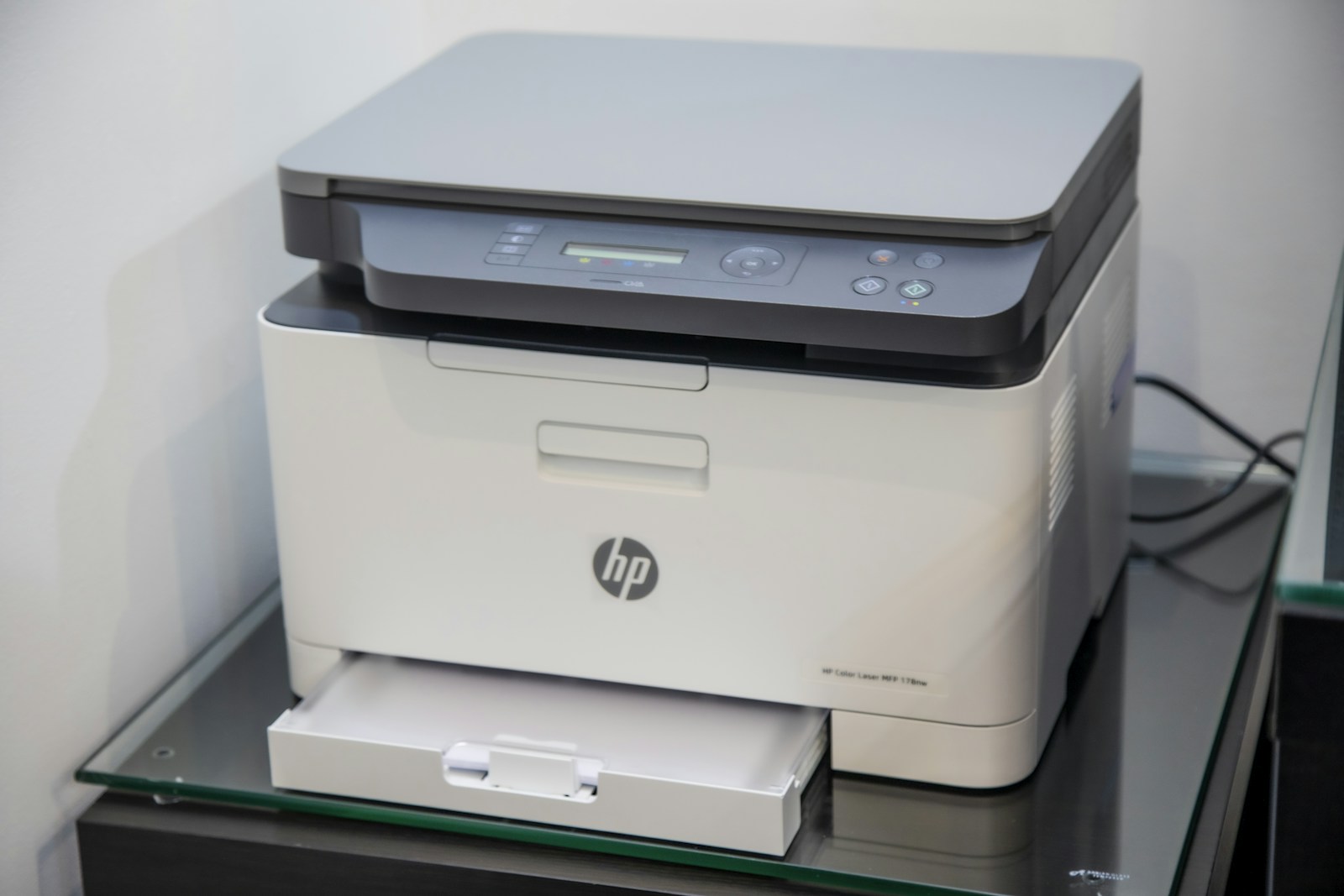
A printer problem can begin in the document, the application, the computer's queue, the connection, or the printer itself. Reinstalling the driver immediately changes one part of that chain without telling you where the job stopped. A more useful approach is to send a small test and observe each stage.
Start with one printer and one document. If this is a shared office printer, check with the person who manages it before clearing shared jobs, restarting services, or changing its network settings. Other people may be waiting on the same device.
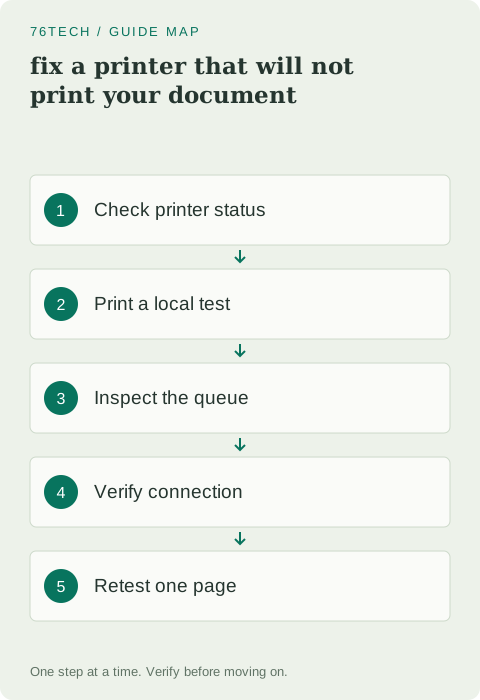
1. Read the printer's own status
Look at the printer display and indicator lights. Check for an open cover, an empty paper tray, a jam message, or a consumable warning. Use the printer's manual to interpret the message rather than assuming that every blinking light means the same thing across models.
If the printer can produce an internal test or configuration page from its own controls, try that supported function. A successful local page shows that at least part of the printing mechanism works without involving your computer. If the local test fails, concentrate on the printer before changing software on the laptop.
2. Send a small, simple document
Create or open a short text document and print one page. Confirm the selected printer in the print dialog. It is easy to send a job to an old device, a virtual PDF printer, or a similarly named duplicate queue. Check the page range and number of copies before submitting.
If the simple document prints but the original does not, the connection is probably functioning. Investigate the original application's print settings, paper size, or the document itself. A large graphics-heavy file can behave differently from a short text page, so this comparison is more informative than repeatedly sending the original job.
3. Inspect the queue without creating more jobs
Open the printer queue and look for the test job. Note whether it is waiting, paused, showing an error, or absent. Do not keep clicking Print while troubleshooting; a delayed queue can later release every copy you submitted.
If your own failed job blocks the queue, cancel that job through the supported interface and wait for the cancellation to complete. On a shared queue, avoid removing other people's jobs. Microsoft's printer troubleshooting guide covers common queue, connection, and device problems and links to issue-specific procedures.
4. Check the connection appropriate to the printer
For USB, verify both ends of the cable and test a direct connection when possible. A dock or hub adds a potential power or communication problem. Use a suitable known-good cable for comparison instead of assuming that a cable is healthy because it worked with a different device months ago.
For a network printer, confirm that the computer and printer are on networks that are allowed to communicate. A guest Wi-Fi network may intentionally isolate devices. If the printer has a network-status page, use it to inspect its connection without changing settings. Do not disable network security simply to make discovery easier.
5. Restart only the parts that need it
If the printer is unresponsive, follow its normal shutdown and restart process. Let it complete its initialization before retrying a single page. If the computer has a stale queue or a pending system restart, save work and restart normally as an appropriate comparison.
Avoid repeatedly interrupting power while the printer is moving, updating firmware, or performing maintenance. For a device with a clear paper-jam message, follow the manufacturer’s access instructions rather than pulling paper forcefully through the wrong path. Mechanical handling varies significantly between models.
6. Use official software and model-specific guidance
If the hardware test works but Windows cannot communicate with the printer, use the supported Windows printer troubleshooter or the manufacturer's official setup instructions. Match the exact model and operating system. Search advertisements and unofficial driver sites are poor places to obtain software with broad access to your computer.
Before removing an existing printer entry, note its name and any special settings such as duplex printing, paper trays, or a managed address. Re-adding a device can create another queue rather than fixing the original one. Keep the configuration simple and remove obsolete entries only after confirming which queue actually works.
7. Verify the original task and stop
After the one-page test succeeds, print a small portion of the original document. Check orientation, paper size, margins, and whether the correct tray was used. A technically successful print can still be wrong for the task if content is clipped or the page is scaled unexpectedly.
Finish by confirming that the queue is empty and that no duplicate jobs remain. Record the cause if you found it: wrong queue, disconnected cable, blocked job, or a document-specific setting. If the failure persists, provide support with the model, connection type, local-test result, and exact error. That sequence shows where the job stops and avoids unnecessary repetition of steps already completed.