Before changing router settings, work out whether one device, one room, or the entire home has a problem.
Compare two devices
Try the same website on another device in the same location. If only one device is slow, check its downloads, updates, and network connection.
Move closer
Repeat the test near the router. A clear improvement suggests a coverage issue. Keep the router in an open location rather than inside a cabinet or behind large metal objects.
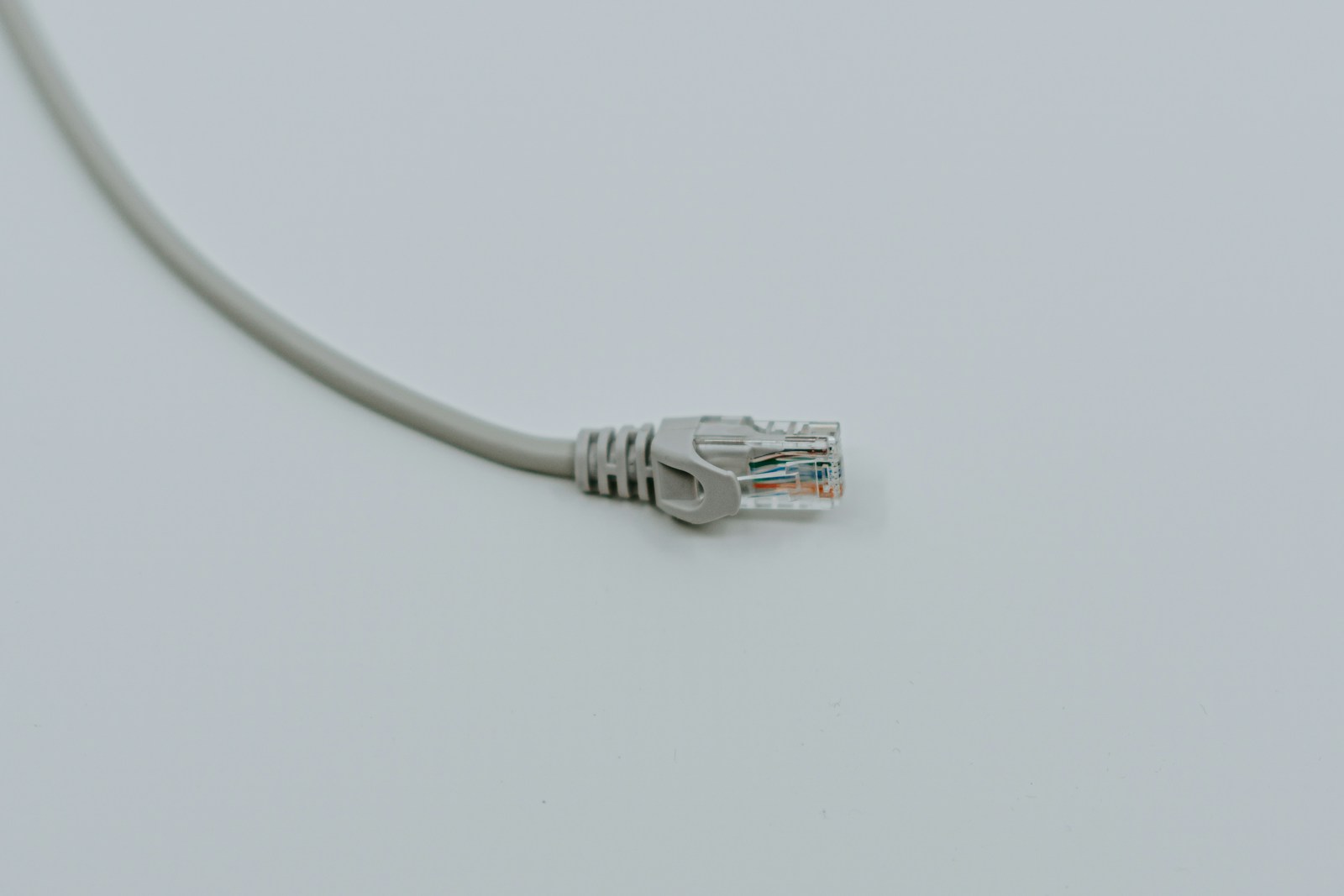
Compare a wired connection
If possible, connect a computer with Ethernet. A stable wired connection and poor wireless performance point toward Wi-Fi coverage or interference. If both are slow, the internet connection or router may be involved.
Restart and record
Restart the router according to its manufacturer’s instructions. Do not press the factory-reset button. If problems continue, record when they happen and which devices are affected before contacting your provider.